
In this article:
What a Work Order card shows
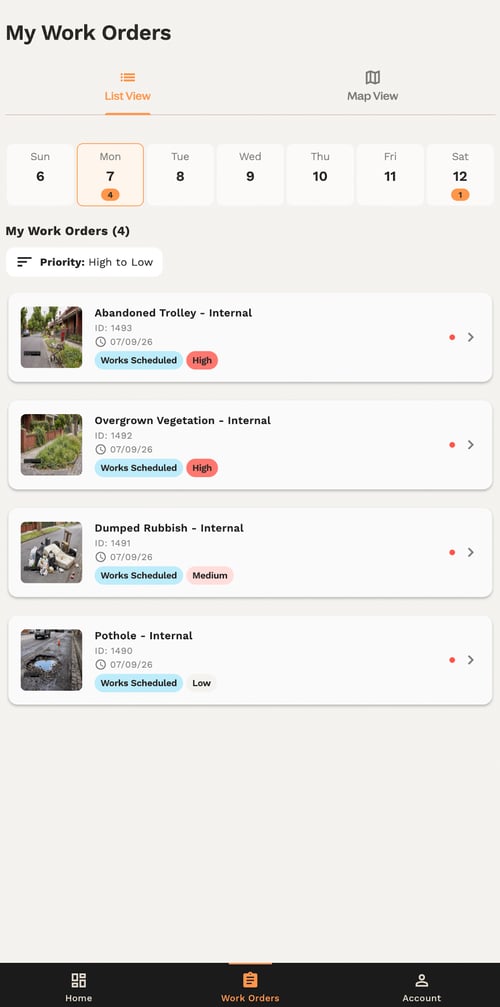
Each card displays the job title (reflecting the report or incident type), the Work Order Status, Work Order Priority and Scheduled Date.
Filtering and sorting your list
Use the filter and sort options on your Work Orders list to find a specific job quickly.
Each card in your My Work Orders list shows the key details of a job at a glance such as the incident type, work order ID, status and priority. A thumbnail of the first photo provided by the Snapper can also be viewed. Newly assigned jobs are marked with a new Work Order indicator so you don't miss them.
Filtering work orders
Use the sorting and filtering options to organise your list. At the top of the page you can select the date to filter Work Orders only on that specific day. If no day is selected, all Work Orders will display. You can also sort them the following ways:
- Priority: High to Low / Low to High
- Date: Newest First / Oldest First (Creation Date)
Using the map view
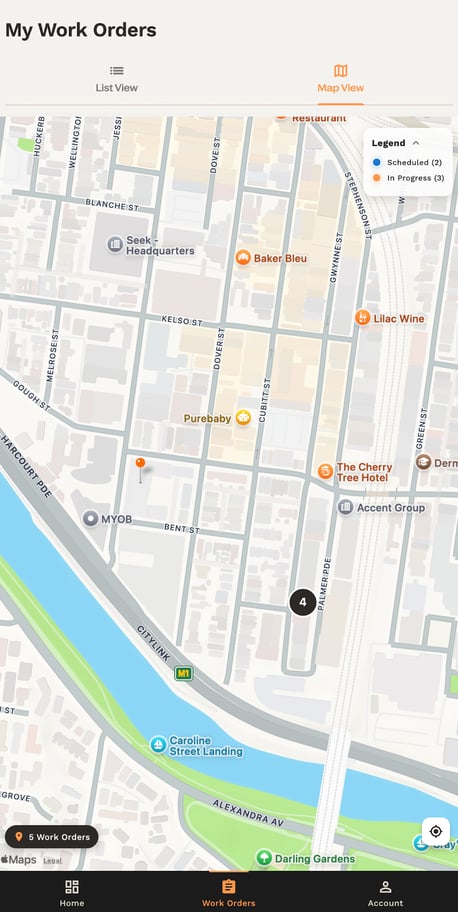
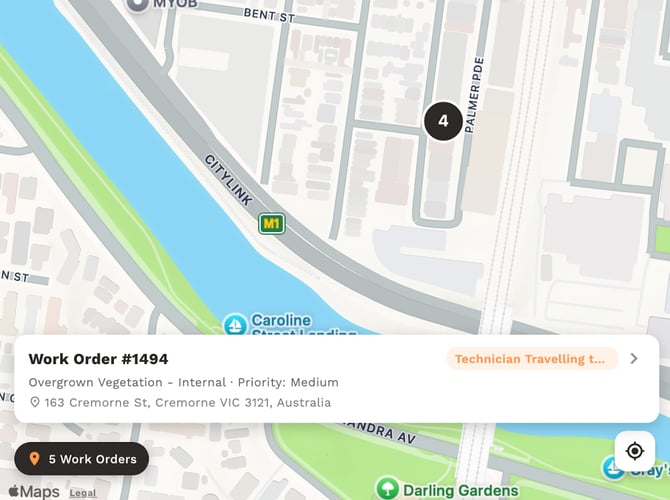
Open the map view to see the location of your scheduled and in progress jobs. You can pinch to zoom in and out to view an area more closely to see a wide view of all Work Orders. Tap the Work Order count in the bottom left corner to automatically zoom the map out to show all your Work Orders. Tap the location icon in the bottom right corner to show Work Orders near your current location. If there are multiple Work Orders in the same location a count of Work Orders will be shown.
Tap on a Work Order to see a quick snapshot of its details and tap on the card to see its full details.
Summary
You can now open a Work Order to see its full details, checklists, location and filter your list to find what you need. Next, see how to start and complete a Work Order.