
In this article:
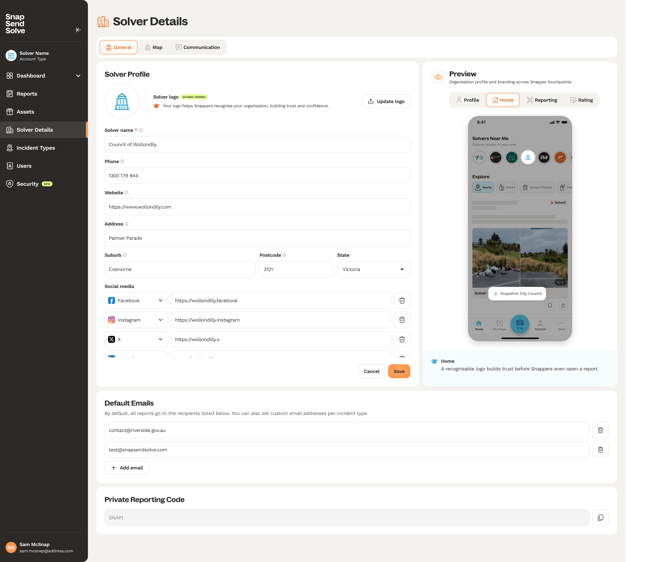
To get started, click Solver Details in the left menu and open the General tab. Your details are in the Solver Profile section.
Updating your logo
- In Solver Profile, click Update logo.
- In the Upload logo window, drop your file in or click to browse and choose one.
- Drag the image to reposition it until it looks right in the preview.
- Confirm your new logo.
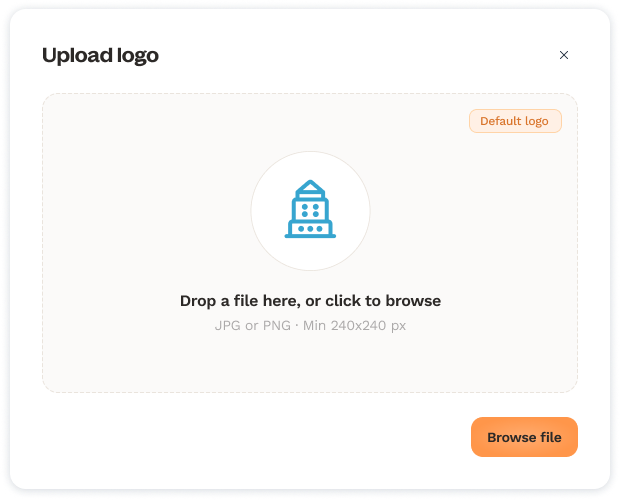
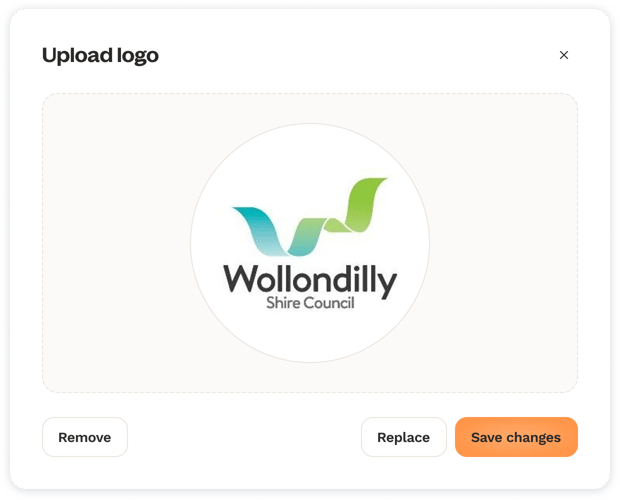
Note: Use a JPG or PNG that's at least 240 x 240 pixels. A simple, clear image works best on mobile devices.
Editing your profile details
- In Solver Profile, update the following fields: Solver name, Phone, Website, Address, Suburb, Postcode and State. The Solver name and State are required fields.
- Click Save.
Adding social media links
- Under Social media, click Add social media.
- Choose a platform from the dropdown: Facebook, Instagram, X or LinkedIn.
- Paste the link to your profile on that platform.
- Click Save.
To remove a link, click the bin icon at the end of its row.
Note: Each link has to match its platform. For example, a LinkedIn link must contain linkedin.com.
Previewing your changes
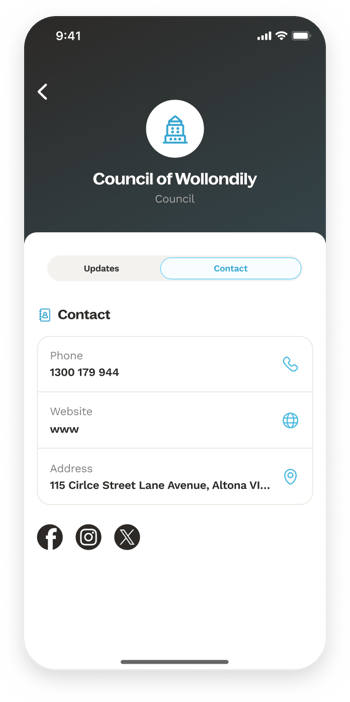
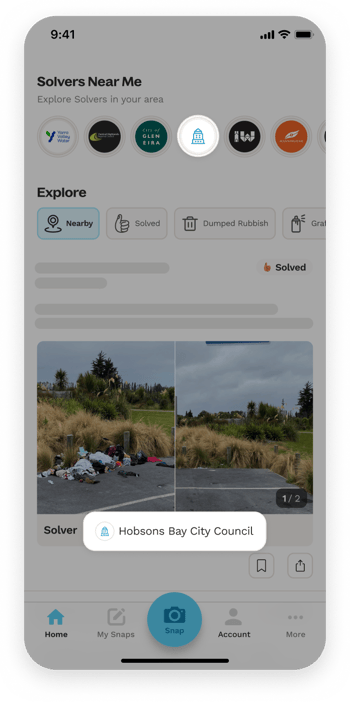
The Preview panel on the right shows how your profile looks in the Snapper app, and updates as you make changes to your logo, phone, website and social links. Use the Profile, Home, Reporting and Rating tabs to see how your details display on each screen.
Summary
You can now keep your logo, contact details and social links up to date and check how they display to Snappers in the Snap Send Solve app.