---
title: How do I update and manage a Snap Send Solve report?
description: How do I update and manage a Snap Send Solve report?
---
[Skip to content](https://www.support.snapsendsolve.com/how-do-i-update-and-manage-a-snap-send-solve-report#main-content)
[](https://support.snapsendsolve.com?hsLang=en-au)
Open main navigation
Close main navigation
- [Contact us](mailto:support@snapsendsolve.com)
[Contact us](mailto:support@snapsendsolve.com)
How can we help you?
- There are no suggestions because the search field is empty.
1. [Solver Support](https://www.support.snapsendsolve.com/?hsLang=en-au)
2. [Using the portal](https://www.support.snapsendsolve.com/using-the-portal?hsLang=en-au)
# How do I update and manage a Snap Send Solve report?
## Learn what you can do when you access a Snap Send Solve report
**Understanding the report**
When viewing a report, you can update it using two main areas:
**Report Details**
Where all report actions are made.
**Timeline**
The area where the history of actions in relation to a report is listed. This information is also reflected in the relevant Snapper's app.
### How to update the incident type
1. Click on the edit button next to the incident type.
2. Search for the new incident type, or select from the AI-powered suggestions or alphabetical list.
3. Choose whether to send an automatic internal email notification to the email address associated with the new incident type.
4. Click update to save your changes.
5. The update will be presented on the **Snapper's** report **Timeline** in the Snap Send Solve app. In addition, a Snapper may also receive an email, message notification, or both, depending on their chosen Notification preferences.
### How to u**pdate the status of a report**
1. Click on edit button next to **Status and reassign.**
2. Select one of the three status options — **In progress, Solved** or **Reassign.**
3. If you’re an enterprise solver you may have access to the messaging feature. [Learn more about sending a message when updating the status.](https://46346269.hs-sites-ap1.com/support/im-a-solver-how-do-i-message-a-snapper-snap-send-solve-help-centre?hsLang=en-au)
4. Click **Update**.
5. The report status will be displayed in the Portal **Timeline**.
6. The update will be presented on the **Snapper's** report **Timeline** in the Snap Send Solve app. In addition, a Snapper may also receive an email, message notification, or both, depending on their chosen Notification preferences.
### What happens when the r**eport status has changed to Solved?**
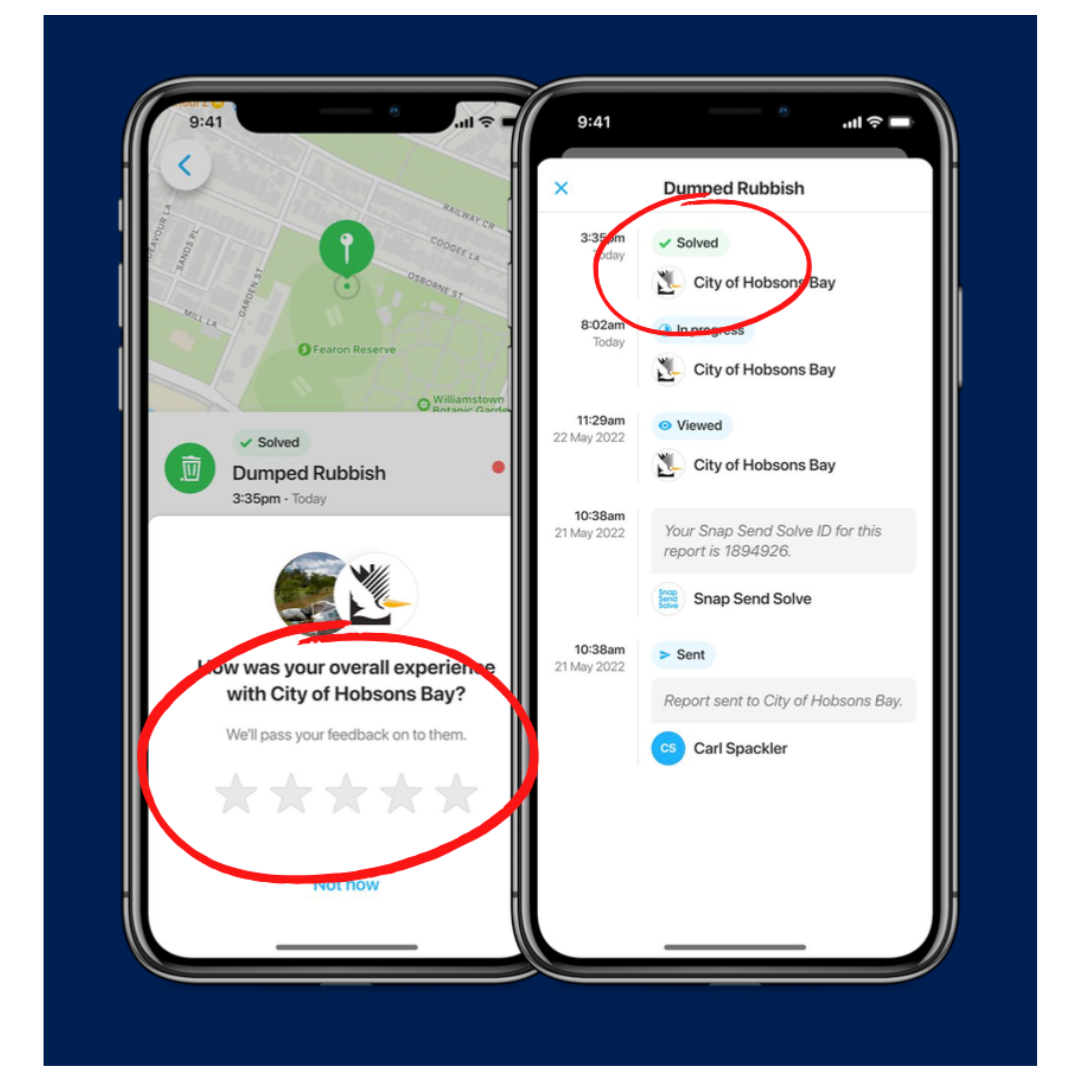
When a report status is updated to Solved, the Snapper will see the update on their report **Timeline** and they may also receive an email, message notification, or both, depending on their chosen Notification preferences. They will then be prompted to rate their experience.
As the Solver, you will also receive an update with the rating outcome.
[](https://downloads.intercomcdn.com/i/o/677072644/95edfb11b5365fb33df97acf/In+app+status+update.png?expires=1771983900&signature=dfe13264c9fee2278fa3089770f031aadea2497a71c5cfcfa660647f08d222bb&req=cicgFs58m4VbFb4f3HP0gAs259JLGLXIbnWceXJMMldcn5qtRboTonSRKM%2B1%0A4Zv2b7rPffPbeTrMwA%3D%3D%0A)
### **Add internal reference number**
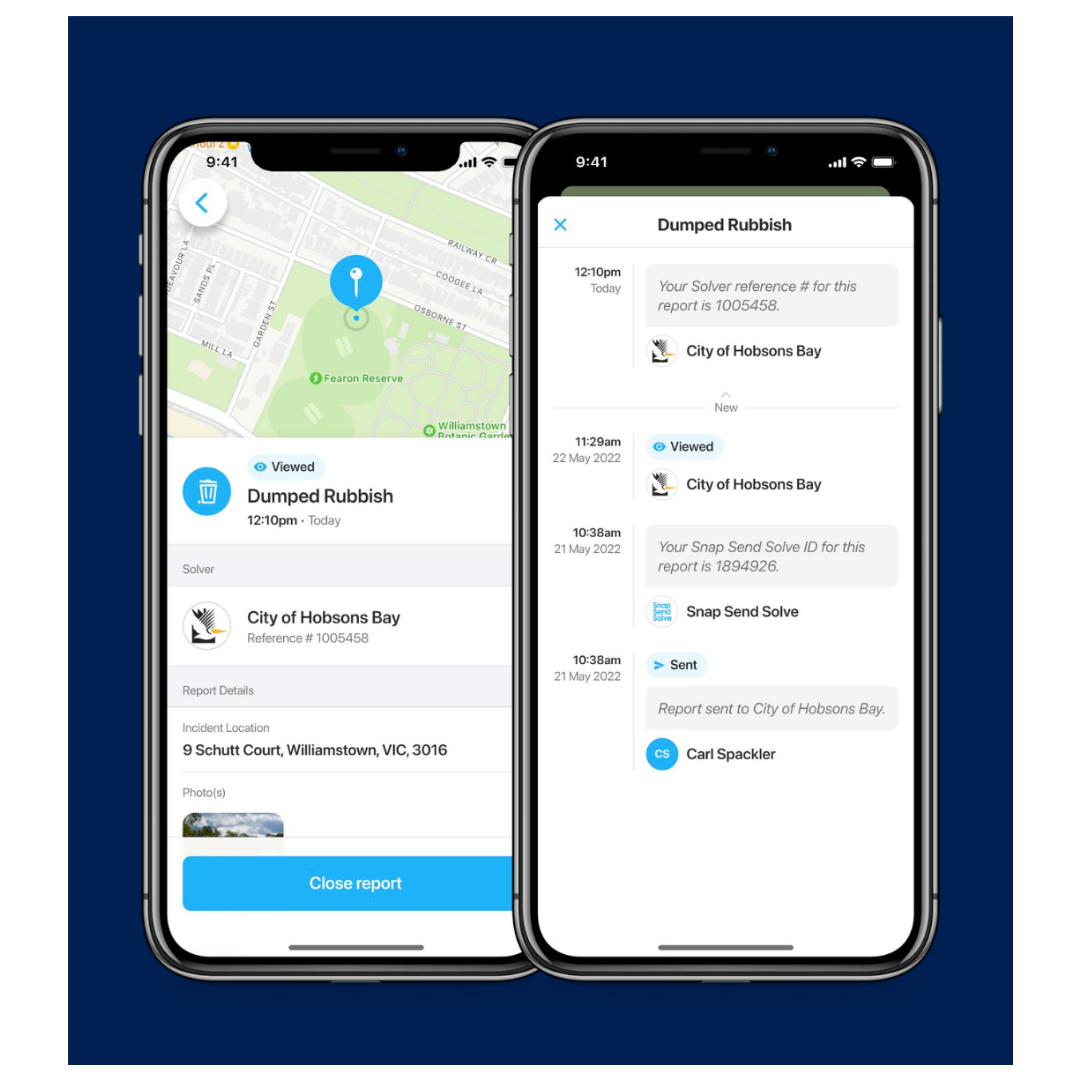
We understand that your organisation may have its own internal reference numbers to keep track of reports. In the Portal, you can add your own internal reference number into a Snap Send Solve report. This number will be viewable by the Snapper.
To add an internal reference number:
1. Click the edit button next to **Reference #**.
2. Enter the information into the field pop up window.
3. **If you’re an enterprise solver** and and have **Message Templates** enabled, you can select a template from the drop-down list. This will automatically populate the message field and allow you to generate responses consistently and efficiently. If you don't have Message templates enabled, consider clicking on the **Enable Message Template** link to contact us for more information. Alternatively, write a message in the **Message** box.
4. **If you’re a basic Solver** you will need to upgrade to access the messaging feature. Click on **Enable Snapper Messaging** to find out more.
5. Click **Update**
6. Your organisation’s internal **reference number** will now be visible in the Portal timeline.
7. The update will be presented on the **Snapper's** report **Timeline** in the Snap Send Solve app. Depending on the Snapper’s notification preferences, they may also receive an email, message notification, or both.
### [](https://downloads.intercomcdn.com/i/o/677074416/3061eb698ab819bfffdb2f44/reference+number+in+timeline+.png?expires=1771983900&signature=117e686213283b90e85c47122b811af135d37f8db9c7c94303955997cbe2c438&req=cicgFs56mYBZFb4f3HP0gCwavLycrjkHVV8A5iqyV0helqjTUAQPV%2F4XSI%2Fc%0Axy5XGJ3AIfEfKhgUfw%3D%3D%0A)
### Verified email
If you make an update to a report in the Portal, your verified email will show in the report timeline. The email address is only visible to staff ***within*** your organisation and is ***not*** displayed to the Snapper.
---
**Need more help?** Get support from our team by emailing us at [support@snapsendsolve.com](mailto:support@snapsendsolve.com) or sending us a message.
- [About Snap Send Solve](https://www.support.snapsendsolve.com/about-snap-send-solve?hsLang=en-au)
- [Using the portal](https://www.support.snapsendsolve.com/using-the-portal?hsLang=en-au)
- [Incident customisation](https://www.support.snapsendsolve.com/incident-customisation?hsLang=en-au)
- [Developer documentation](https://www.support.snapsendsolve.com/developer-documentation?hsLang=en-au#main-content)
- [API](https://www.support.snapsendsolve.com/developer-documentation?hsLang=en-au#api)
- [Webhook](https://www.support.snapsendsolve.com/developer-documentation?hsLang=en-au#webhook)
- [Solver Portal Training](https://www.support.snapsendsolve.com/solver-portal-training?hsLang=en-au)
- [Manage Works](https://www.support.snapsendsolve.com/manage-works?hsLang=en-au#main-content)
- [Portal](https://www.support.snapsendsolve.com/manage-works?hsLang=en-au#portal)
- [Solve App](https://www.support.snapsendsolve.com/manage-works?hsLang=en-au#solve-app)
- [Snapper Support](https://help.snapsendsolve.com/)
- [Privacy Policy](https://www.snapsendsolve.com/privacy-policy)
- [Terms of Use](https://www.snapsendsolve.com/terms-of-use)
- [AI Transparency Statement](https://www.snapsendsolve.com/ai-transparency-statement)
- [Trust Centre](https://trust.snapsendsolve.com/)
- [Service Status](https://snapsendsolve.statuspage.io/)
[](https://www.support.snapsendsolve.com/?hsLang=en-au)
[mailto:support@snapsendsolve.com](mailto:support@snapsendsolve.com)
Copyright © 2026, Snap Send Solve