---
title: How do I message a Snapper?
description: How do I message a Snapper?
---
[Skip to content](https://www.support.snapsendsolve.com/how-do-i-message-a-snapper#main-content)
[](https://support.snapsendsolve.com?hsLang=en-au)
Open main navigation
Close main navigation
- [Contact us](mailto:support@snapsendsolve.com)
[Contact us](mailto:support@snapsendsolve.com)
How can we help you?
- There are no suggestions because the search field is empty.
1. [Solver Support](https://www.support.snapsendsolve.com/?hsLang=en-au)
2. [Using the portal](https://www.support.snapsendsolve.com/using-the-portal?hsLang=en-au)
# How do I message a Snapper?
## Find out how to speak to your Snappers based on your subscription.
Communicating to Snappers by using our messaging functionality, is a great way to keep them in the loop.
As a Solver, when you access a report in the Portal, there's a number of ways to message a Snapper.
### **Direct message**
With direct messaging, you can send a message straight to the Snapper. This is a great option if you want to give a general update about a report.
To send a direct message:
1. Tap on the **Send message** button under the Manage panel.
2. If **Message Templates** are enabled, you can select a template from the drop-down list. This will automatically populate the message field and allow you to generate responses consistently and efficiently.
3. If Message templates aren't enabled, consider clicking on the **Enable Message Templates** link to contact us for more information.
4. Alternatively, write a message in the **Message** box.
5. Click **Send.**
6. Once a message is sent, the message details will appear on the **Portal** report **Timeline.**
7. The message is also presented on the **Snapper's** report **Timeline** in the Snap Send Solve app. In addition, a Snapper may also receive an email, message notification, or both, depending on their Notification preferences.
### Upda**te report status** and **send a message**
You can send a message to Snappers when updating the status of a report. This is a great way to give Snappers more context on the status update.
To update the report status and send a message:
1. Click the edit button next to S**tatus** in the **Report Details** section.
2. Select one of the status options — **In progress** or **Solved.**
3. Click on the **Update** button.
4. If you have **Message Templates** enabled, you can select a template from the drop-down list. This will automatically populate the message field and allow you to generate responses consistently and efficiently.
5. If you don't have Message templates enabled, consider clicking on the **Enable Message Templates** link to contact us for more information.
6. Alternatively, write a message in the **Message** box.
7. Click **Update**.
8. Once a message is sent, the message details will appear on the **Portal** report **Timeline**.
9. The message is also presented on the **Snapper's** report **Timeline** in the Snap Send Solve app. In addition, a Snapper may also receive an email, message notification, or both, depending on their chosen Notification preferences.
### **Reassign a report and send a message**
When reassigning a report to another Solver, you can also include a message to both the new Solver and the Snapper. Adding messages when reassigning a report provides more clarity on why the report has been reallocated.
To reassign a report and send a message:
1. Click the edit button next to S**tatus** in the **Report Details** section.
2. Select **Reassign**.
3. Click on the drop-down list underneath **Reassign to**. Select the organisation from the list.
4. Click on the **Update** button.
5. If you have **Message Templates** enabled, you can select a template from the drop-down list. This will automatically populate the message field and allow you to generate responses consistently and efficiently.
6. If you don't have Message templates enabled, consider clicking on the **Enable Message Templates** link to contact us for more information.
7. The **Message to the new Solver** field must be filled in with a short description on why the report is being reassigned. We also recommend writing a message to the Snapper to give context on why the report reassignment has occurred.
8. Click on **Reassign**.
9. The messages and reassignment will now appear in the **Portal** report **Timeline** and a reassignment **banner** will appear at the top of the report.
10. The **new Solver** will also see your message in the report **Timeline** when they open their report.
11. The message is also presented on the **Snapper's** report **Timeline** in the Snap Send Solve app. In addition, a Snapper may also receive an email, message notification, or both, depending on their chosen Notification preferences.
### **Reference number and send a message**
Make it easier to track and manage reports by adding your Organisation's internal reference number and send a message to the Snapper.
To update your internal reference number and send a message:
1. Enter your internal reference number under **Reference #** field within the Manage panel.
2. Click on **Update.**
3. If you have **Message Templates** enabled, you can select a template from the drop-down list. This will automatically populate the message field and allow you to generate responses consistently and efficiently
4. If you don't have Message templates enabled, consider clicking on the **Enable Message Template** link to contact us for more information.
5. Alternatively, write a message in the **Message** box.
6. Click on the **Update** button.
7. Reference number details will appear on the **Portal** report **Timeline.**
8. The Reference number update is also presented on the **Snapper's** report **Timeline** in the Snap Send Solve app. In addition, a Snapper may also receive an email, message notification, or both, depending on their chosen Notification preferences.
### What will the Snapper receive?
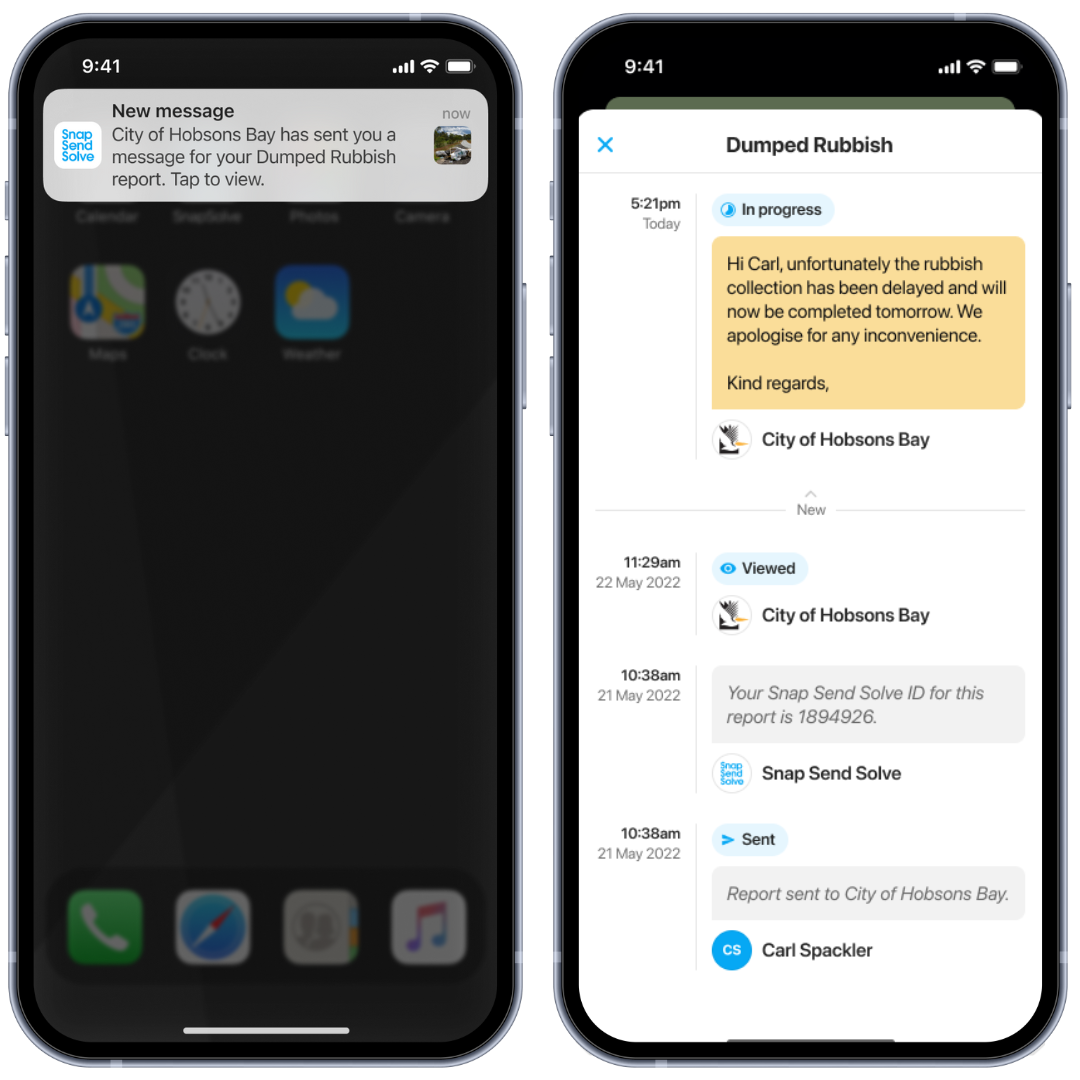
As a Solver, when using the messaging feature, the message will be presented on the **Snapper's** report **Timeline** in the Snap Send Solve app.
Depending on the Snapper’s notification preferences, they may also receive an **email**, **message notification**, or **both**.
[](https://downloads.intercomcdn.com/i/o/835388512/bba20f870f2d3fe485d8199d/Snapper+in+app+messaging+.png?expires=1771983900&signature=ef5c8b9457907f31c142bb2a069131a50bab004021876ab1b0ce17f3202ac2f8&req=fCMiFcF2mIBdFb4f3HP0gAyEsI6rqMA9JcZyjNKd4dinsSQueepSgiEdqImC%0AWWq2UgpnDiYZCcEkww%3D%3D%0A)
---
**Need more help?** Get support from our team by emailing us at [support@snapsendsolve.com](mailto:support@snapsendsolve.com) or sending us a message.
- [About Snap Send Solve](https://www.support.snapsendsolve.com/about-snap-send-solve?hsLang=en-au)
- [Using the portal](https://www.support.snapsendsolve.com/using-the-portal?hsLang=en-au)
- [Incident customisation](https://www.support.snapsendsolve.com/incident-customisation?hsLang=en-au)
- [Developer documentation](https://www.support.snapsendsolve.com/developer-documentation?hsLang=en-au#main-content)
- [API](https://www.support.snapsendsolve.com/developer-documentation?hsLang=en-au#api)
- [Webhook](https://www.support.snapsendsolve.com/developer-documentation?hsLang=en-au#webhook)
- [Solver Portal Training](https://www.support.snapsendsolve.com/solver-portal-training?hsLang=en-au)
- [Manage Works](https://www.support.snapsendsolve.com/manage-works?hsLang=en-au#main-content)
- [Portal](https://www.support.snapsendsolve.com/manage-works?hsLang=en-au#portal)
- [Solve App](https://www.support.snapsendsolve.com/manage-works?hsLang=en-au#solve-app)
- [Snapper Support](https://help.snapsendsolve.com/)
- [Privacy Policy](https://www.snapsendsolve.com/privacy-policy)
- [Terms of Use](https://www.snapsendsolve.com/terms-of-use)
- [AI Transparency Statement](https://www.snapsendsolve.com/ai-transparency-statement)
- [Trust Centre](https://trust.snapsendsolve.com/)
- [Service Status](https://snapsendsolve.statuspage.io/)
[](https://www.support.snapsendsolve.com/?hsLang=en-au)
[mailto:support@snapsendsolve.com](mailto:support@snapsendsolve.com)
Copyright © 2026, Snap Send Solve